Kodi
- 3.7
- Rating
- 50.00M
- Installs
- Free
- Price

 Analysis by App-foxy
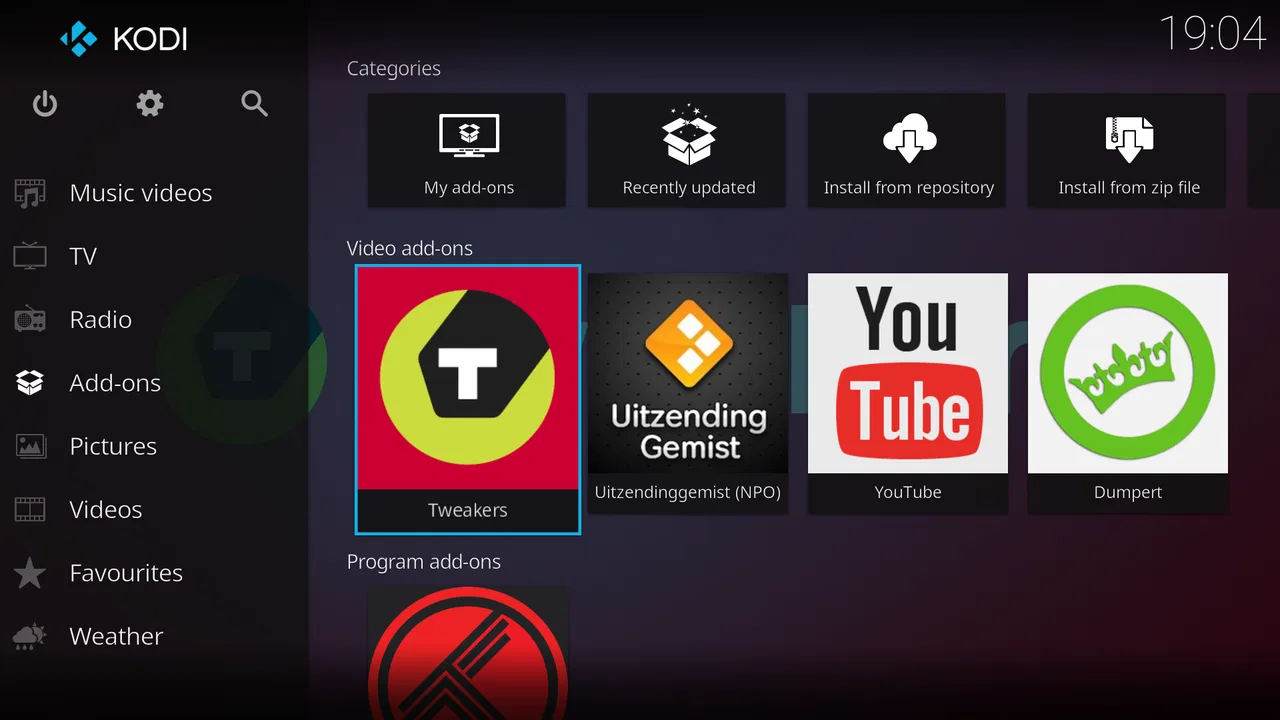
I spent time using Kodi as a media center rather than treating it like a simple video player, and that distinction matters. It is free, open-source software from the Kodi Foundation, designed to bring video, music, pictures, and other entertainment into one interface. On Android, it feels less like a streaming service and more like a front end for media you already have access to. That can be extremely useful, but it also means the experience depends heavily on how willing you are to organize sources, adjust settings, and learn the interface.
The app belongs to the video players and editors category, although “player” only describes part of what it does. Kodi can sit at the center of a home media setup, read files from local storage or network locations, and present them in a library with artwork and categories. It is available at no charge, carries an Everyone age rating, and supports Android devices running version 5.0 or later. The current release is version 21.2, so users with older phones should still check whether their particular device handles the interface comfortably.
How Kodi delivers value without a purchase
The most important cost detail is simple: there is no purchase price for the app itself. I can install Kodi without paying for a subscription or unlocking a premium tier. That makes its value very different from a commercial streaming application. Kodi does not sell me a catalog of films or shows; instead, it gives me a flexible place to manage and play media from sources I choose.
You May Also Like

 Blood Strike: 2.5 Anniversary
Blood Strike’s Loadouts Turn Every Drop Into a Tactical Gamble
A close look at Blood Strike’s custom loadouts: how fast access to signature weapons reshapes its battle royale rhythm, rewards preparation, and narrows the gap between fights.

 Pandora - Music & Podcasts
Pandora’s Music Is Easy to Start, but Harder to Recover
Pandora’s strength is its low-effort path from a seed to a station. Its weak spot is how much confidence it asks you to place in connection, setup, and quiet recovery.

 8 Ball Pool
 Is Built on Rivalries, Rematches, and Routine
A close look at the rivalries, rematches, shared routines, and unanswered safety questions that turn a quick pool match into a persistent mobile community.

 Samsung Music
’s Quiet Strength Is Playing What You Already Own
Its reach comes less from spectacle than from dependable access to a personal library. That simplicity is both the app’s strongest retention engine and its ceiling.

 AccuWeather: Weather Radar
AccuWeather Review: A Quick, Clear Forecast for Everyday Decisions
For everyday plans, the best forecast is the one you can understand quickly. AccuWeather makes rain timing, radar, and local conditions easy to act on, with a few trade-offs.

 Hill Climb Racing
Why Hill Climb Racing Still Turns Crashes Into One More Run
A tiny car, a bumpy hill and one more upgrade: Hill Climb Racing keeps resurfacing because its simple chaos makes every near-miss feel personal.
More From Our News Desk



That free access is especially valuable if you already own a collection of videos, music, or photographs. Instead of opening a separate file manager, searching through folders, and launching files one by one, I can build a more comfortable library experience. A television remote, a phone, or another compatible controller can then be used to browse content from a sofa. The benefit is not that Kodi creates entertainment out of nothing, but that it can make existing content easier to use.
I also like that the project is open source. For an everyday user, that does not automatically make the app easier, but it explains why Kodi feels more configurable than many polished commercial players. I can decide how my media is arranged, which sources are visible, and how much information the library displays. The trade-off is that the app expects more involvement from me than a service that simply asks me to sign in and press play.
Its reach is substantial: Kodi has passed 50 million installs and holds an average rating of 3.6 from roughly 339 thousand ratings. Those figures suggest a widely used app with a mixed experience rather than a universally effortless one. That matches my impression. Kodi can be excellent once configured, but a new user may find the first session confusing because the app presents a media-center framework instead of a ready-made entertainment feed.
The real value is control over your own media
My favorite part of Kodi is the separation between the app and the content source. I am not locked into one store or one subscription library. If I have files on the device, on removable storage, or somewhere reachable on my home network, Kodi can be used as the viewing layer. This is a practical advantage for people who have collected media over the years and want a single interface instead of several unrelated players.
That flexibility also helps in a household setting. I can imagine using an Android device connected to a television, with Kodi presenting family videos, music, and downloaded content from one menu. A child can browse a prepared library without navigating a complicated file structure, while an adult can keep separate areas for different types of media. The setup requires care, but the result can feel much more deliberate than scrolling through a folder full of filenames.
Another useful workflow is to treat Kodi as a living-room interface while keeping the underlying files elsewhere. Rather than copying a large collection onto every phone, I can use a network source and let the Android device act as the controller and playback screen. This is one of the app’s less obvious strengths: it can reduce duplication when a home already has shared storage. The weakness is equally important—network organization and access must be working properly, so this is not as instant as opening a cloud streaming app.
The library approach is also better for people who care about browsing by context. A folder view tells me where a file is stored. A media center can help me think in terms of films, episodes, albums, or playlists. That difference becomes more valuable as a collection grows. With only a handful of files, Kodi may feel unnecessarily large; with a substantial personal library, the structure becomes much more worthwhile.
Where it differs from ordinary video players
A standard Android video player is usually better when I have one file to open immediately. I select the video, choose the player, and start watching. Kodi adds a layer of library management, navigation, and customization. That makes it slower for a quick one-off clip, but stronger as a permanent home for organized media.
Streaming applications are the opposite comparison. They are usually easier at the beginning because the catalog, artwork, playback rules, and recommendations are already prepared. Kodi gives me more control over sources and presentation, but I am responsible for supplying legitimate media and arranging it. If my main goal is to discover new shows through a ready-made subscription catalog, Kodi is not a replacement for that kind of service.
File managers paired with a basic player can also be more efficient for occasional use. I would choose that combination for a phone where I rarely watch local content and do not need a ten-foot interface. Kodi makes more sense when I want a consistent media hub, especially on a larger screen or in a home setup where browsing matters as much as playback.
One subtle trade-off is that customization can become a distraction. I found it tempting to adjust menus and presentation before simply watching anything. That is part of Kodi’s appeal for enthusiasts, but it can frustrate someone who wants zero setup. The app rewards patience rather than instant familiarity.
Practical setup choices that make a difference
My advice is to begin with one clearly organized media source instead of importing everything at once. A small test library makes it easier to understand how Kodi handles folders, titles, and categories. Once the basic workflow feels comfortable, I would add other sources gradually. This avoids the common mistake of creating a large, cluttered library and then spending more time correcting it than watching anything.
Naming and folder structure matter more here than they do in a basic player. If files are stored with inconsistent names, the library may be less pleasant to browse, and I may need to fall back to a file-based view. I would keep films, shows, music, and personal recordings separated before adding them. That small amount of preparation pays off because Kodi is strongest when it can present a collection clearly.
I would also test playback on the actual device and display I plan to use. An Android phone and a television-connected device can feel very different, especially when navigating menus with touch controls versus a remote. Kodi’s interface is designed around media-center use, so a large screen can make its structure feel more natural. On a small phone, some controls may feel less immediate than those in a lightweight player.
For network media, I would first confirm that a single file plays reliably before building a full library around the connection. This is a practical way to separate a Kodi configuration issue from a storage or network issue. It also prevents a frustrating situation where a library appears correctly but playback fails when I actually sit down to watch.
Limitations I noticed during everyday use
Kodi’s main weakness is not a lack of ambition; it is the amount of responsibility placed on the user. The app can be made to fit many setups, but that flexibility means there are more decisions than in a conventional player. New users may wonder where their files are, how to add a source, which view is best, or why a library does not look as polished as expected.
The interface can also feel dense. Menus, sections, settings, and media categories are useful once understood, but they do not always communicate the simplest next step. I would not recommend Kodi to someone who becomes annoyed by configuration screens or who expects every feature to be self-explanatory.
Another limitation is that free installation should not be confused with free access to every kind of content. Kodi is the media-center software; it is not a universal license for films, television, or music. I would use it with media and services I am entitled to access, and I would be cautious about unofficial sources that promise content without clear rights. The app’s open nature makes it important for the user to make sensible choices.
Performance can vary by device and by the media being played. I would not assume that an older Android phone will provide the same smooth experience as a newer television device. The minimum operating-system requirement is Android 5.0, but meeting that requirement does not guarantee that every demanding library or playback setup will feel equally comfortable. This is another reason to test a small collection before committing to a larger arrangement.
The rating of 3.6, alongside more than 24 thousand written reviews, reflects the fact that Kodi clearly works well for some people and feels difficult for others. I see that split as understandable rather than alarming. The app is powerful enough to serve advanced home-media needs, but power often creates friction for people who only want a simple play button.
Who will get the most from it?
I would recommend Kodi to someone with a personal media collection, a home network, or a television-centered setup. It is particularly appealing if you want to avoid juggling several file browsers and players. The app can turn scattered content into a more coherent library, and its free price makes experimentation low-risk.
It is also a good fit for users who enjoy control. If you like deciding how media is grouped, which sources are visible, and how a home entertainment screen behaves, Kodi offers much more room than a locked-down streaming app. The learning curve becomes part of the value because the final setup can reflect your habits instead of a service provider’s design.
I would be more cautious about recommending it to a person who mainly watches subscription streaming services on a phone. That user may gain little from creating a local library and may find Kodi slower to configure than the apps already designed around those services. Likewise, if you only need to open occasional clips from downloads or messages, a lightweight player is likely the more comfortable choice.
Families should think about organization before installing it on a shared device. Kodi can be useful for a common library, but the experience improves when folders and sources are intentionally arranged. A messy collection will remain messy behind a more attractive interface. The app helps with presentation; it does not remove the need for sensible media management.
My buy-or-skip verdict
There is no purchase decision in the usual sense because Kodi is free to install. The real question is whether I am willing to invest time in setup. In my experience, that is the price of admission: not money, but organization, experimentation, and occasional troubleshooting. For the right user, that exchange is excellent value.
I would choose Kodi when I want a flexible home media center for content I already own or can legitimately access. Its strongest case is a growing personal library, shared storage, or a television where a remote-friendly interface is more useful than a file list. The app’s open-source foundation and broad Android compatibility make it approachable to try, while its current version 21.2 gives users a modern release to work with.
I would skip it when convenience matters more than control. If I want a ready-to-watch catalog, automatic recommendations, and almost no configuration, a conventional streaming service is a better match. If I only need quick playback of individual files, a basic video player is less demanding. Kodi is not the universal best option; it is the better option for people who want their own media environment.
After using it, my honest recommendation is to start small rather than judge it after the first confusing screen. Add one legitimate source, test a few files, and decide whether the library approach improves your routine. If it does, Kodi can become a capable central hub instead of just another app on the phone. Its value comes from turning media you control into an organized experience, not from replacing every entertainment app you already use.
For me, that makes Kodi worth trying, especially because there is no upfront cost. I would not call it effortless, and I would not hand it to a complete beginner without explaining the setup expectations. But for an Android user who wants a customizable media center and is prepared to spend a little time arranging it, this is one of the more capable free choices in its category.
FAQs for Kodi
01What is Kodi and what can it do?
Kodi is a versatile open-source media player that allows users to stream and organize digital media content. It supports a wide range of file formats and can stream content from local storage or the internet. Users can personalize their experience with various add-ons, skins, and themes, making it a popular choice for home theater systems.
02Is Kodi legal to use?
Yes, Kodi itself is completely legal as it is simply a media player. However, legality issues may arise depending on how it is used. Installing third-party add-ons that provide access to copyrighted content without permission can lead to legal trouble. Users should ensure they only use official or legal content sources.
03Can Kodi be used on all devices?
Kodi is highly versatile and supports many platforms including Windows, macOS, Linux, Android, and iOS. It can also be installed on streaming devices like the Amazon Fire Stick and Raspberry Pi. However, some devices may require additional steps for installation, particularly iOS devices which may need jailbreaking.
04How can I enhance my Kodi experience?
Kodi can be customized with a variety of add-ons and skins to enhance user experience. Add-ons can provide additional functionalities such as streaming services, live TV, and more. Skins allow users to change the appearance of the interface. It is recommended to use the official Kodi repository to find safe and reliable add-ons.
05Why is Kodi buffering and how can I fix it?
Buffering in Kodi can occur due to slow internet connections, high-definition content streaming, or server issues. To fix buffering, users can try reducing the video quality, clearing the cache, or using a wired internet connection for more stability. Ensuring the device has adequate processing power and memory can also help reduce buffering issues.
Pros
- Highly customizable interface.
- Supports numerous add-ons.
- Open-source and free to use.
- Available on multiple platforms.
- Great media playback quality.
Cons
- Steep learning curve for beginners.
- Add-ons can be unreliable.
- Updates can break functionality.
- No official support for streaming services.
- Requires manual setup for optimization.

Gallery